The idea came from some of the animated visuals by Daily Dose of Data Science (X: @DailyDoseOfDS_). They explain things like RAG, agents, and other AI mechanisms in a much more vivid way than a static diagram.
In my day-to-day work, I also need to draw flowcharts, architecture diagrams, and mechanism diagrams quite often. But traditional static diagrams are not always enough. When I want to explain how data flows, how nodes execute, or how an agent calls tools, a plain arrow diagram often feels like it is missing something.
There is also a small but annoying part of the process: finding logos, picking icons, and making everything look consistent.
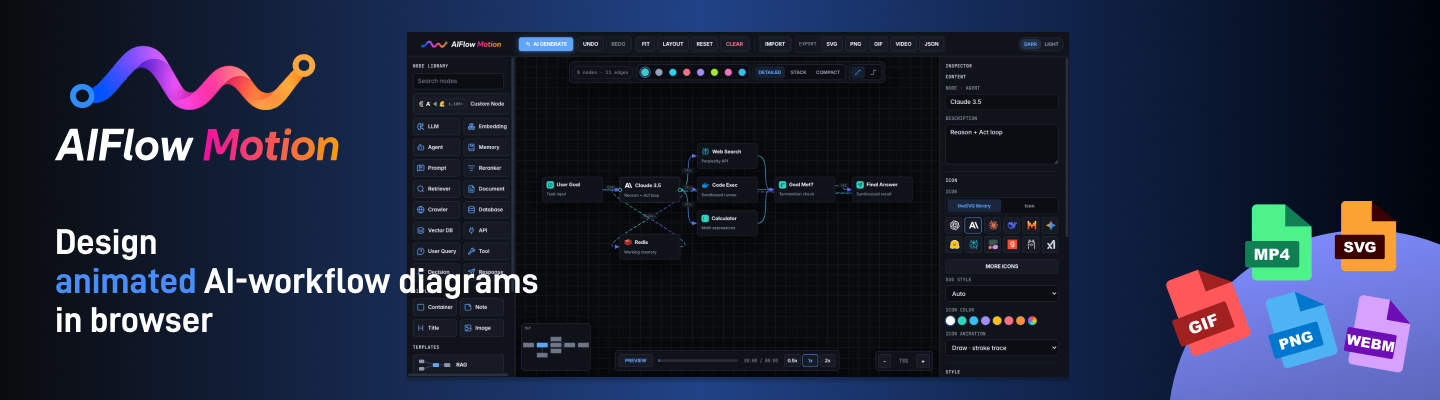
So I spent bits of spare time vibe coding a small tool: AIFlow Motion.
The goal is simple: Use dynamic flowcharts to explain AI workflows, while still being useful for everyday workflow diagrams.
The first version is now open source: https://github.com/dongou1024/aiflow-motion
Live demo : https://aiflowmotion.com
Use cases
- Explain an AI agent, RAG architecture, MCP setup, or automation pipeline to a team or customer.
- Turn static architecture diagrams into GIF / video walkthroughs for documentation and launches.
- Prototype AI workflows with real node types, product logos, and editable execution paths.
- Prepare AI product proposals, technical documentation, launch visuals, and customer-facing workflow demos.
Highlights
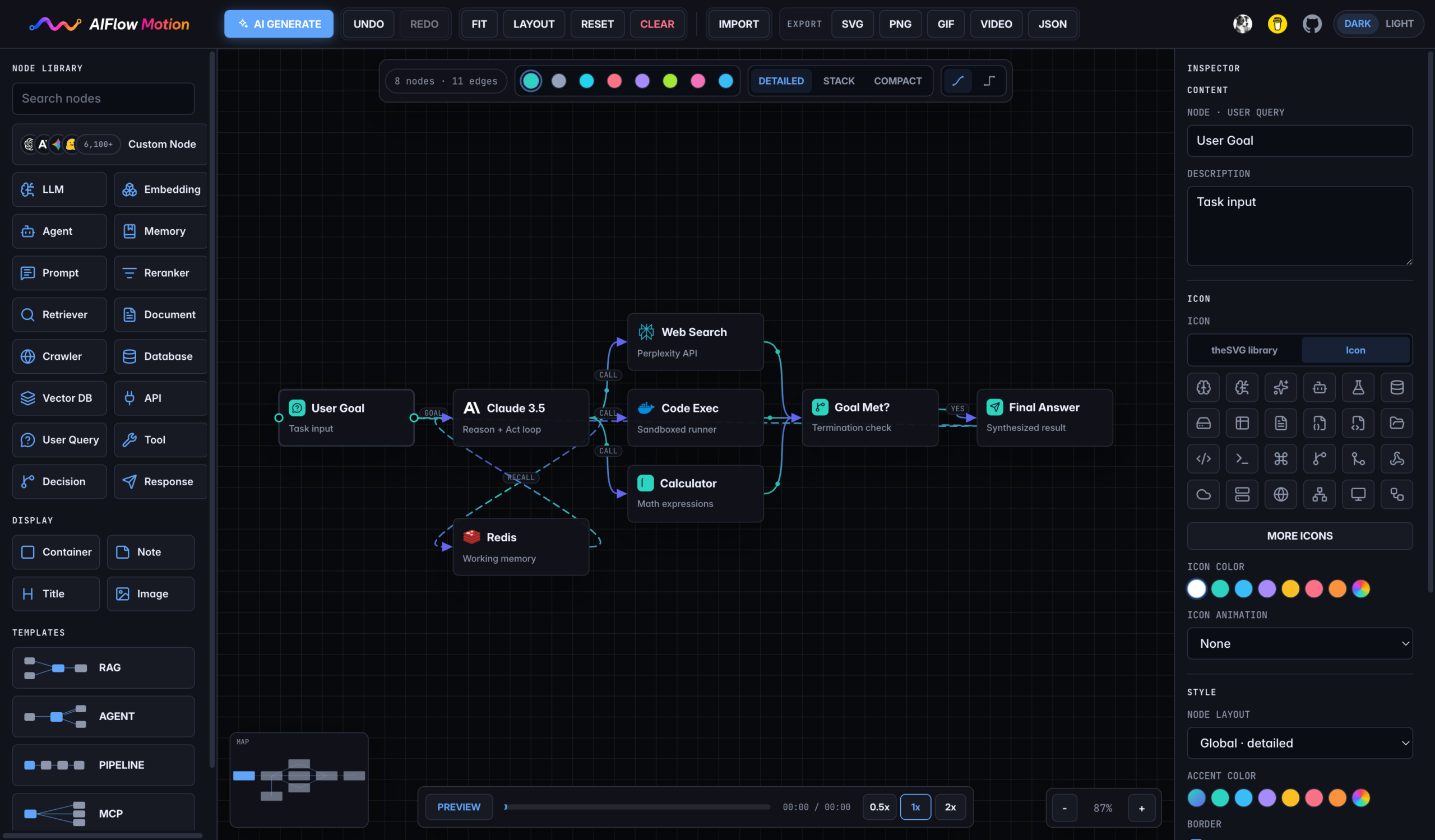
- Line, node, and icon animations — set 7 edge animations, 6 node animations, and 10 icon animations; adjust line style, arrows, colors, gradients, node highlights, and icon motion from the inspector.
- Brand logos and icon picker — search 6,100+ theSVG brand/product logos such as OpenAI, Claude, DeepSeek, Pinecone, Redis, Docker, and AWS, or pick from 1,958 Lucide icons for custom nodes.
- AI generation, keys-safe — describe a workflow; the server-side generation flow first designs the graph, then styles it. Keys live only on the server proxy; the browser only calls
/api/ai/*. Works with OpenAI-compatible, Anthropic, and local (Ollama / LM Studio / vLLM) providers. - AI workflow semantics — built-in node types and templates map to real AI systems: LLMs, agents, retrievers, vector databases, prompts, tools, memory, MCP, and multi-agent flows.
- Rich editing — containers, decision branches, multi-port custom nodes, Markdown notes, auto-layout, multi-select, undo/redo, mini-map, and 8 theme presets in dark/light.
- Static and animated export — export the workflow as PNG, SVG, animated GIF, MP4 / WebM, or versioned JSON; customize the export background color and enable optional node-by-node playback for GIF/video exports.
Icon libraries
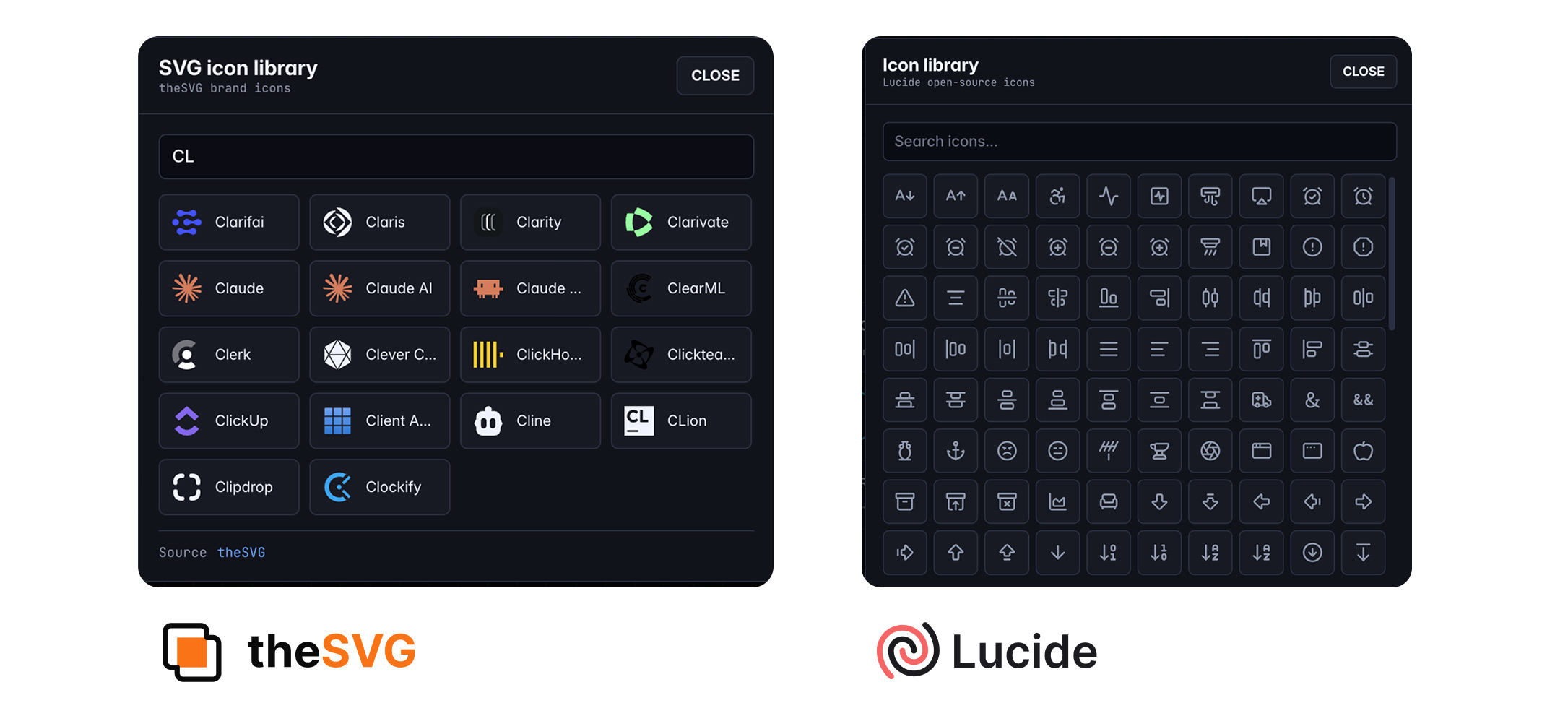
AIFLOW Motion uses two icon sources:
- Brand and product logos — powered by theSVG / GLINCKER/thesvg, with 6,100+ searchable logos in the picker. Use it for AI companies, model providers, databases, cloud platforms, developer tools, and product logos such as OpenAI, Claude, DeepSeek, Pinecone, Redis, Docker, AWS, and more.
- General-purpose node icons — powered by Lucide / lucide-icons/lucide, with 1,958 icons available. Use it for generic workflow roles, UI concepts, tools, files, folders, search, branches, containers, notes, and other non-brand symbols.
Custom nodes can switch between the built-in Lucide icon picker and the theSVG library. theSVG logos are loaded on demand from a CDN; if a brand logo cannot be loaded, the node falls back to the selected generic icon.
Capabilities
| Area | What you can do |
|---|---|
| Canvas | Drag, pan, zoom, mini-map, auto-layout, multi-select, undo / redo |
| Nodes | AI-specific node types, custom nodes, containers, notes, Markdown, global or per-node layouts |
| Icons | Search real product logos from theSVG, or choose generic Lucide icons |
| Edges | Labels, start / end arrows, curved or orthogonal routes, line styles, gradients, motion |
| Motion | Node animation, icon animation, edge flow, particles, glow, and playback preview |
| AI | Prompt-to-workflow generation through a server-side proxy, with template fallback |
| Export | PNG, SVG, animated GIF, MP4 / WebM, versioned JSON, and custom export background colors |
Vibe coding looks effortless from the outside, but in practice it takes a lot of judgment.
Ideas keep showing up while building:
Can this look better?
Can the icon be changed?
Can export be more complete?
Should themes, animations, AI generation, templates, and documentation all be included?
For the first version, the hard part was not adding everything. It was holding back, keeping the scope clear, and deciding what actually belongs in v1.
I also had to work around model limits and cost. Different models were useful for different parts of the process:
- Codex / GPT: product framing, PRD, UI direction, documentation, prototyping, running services, and verifying results.
- Claude: code generation, complex implementation, debugging, and technical solutions.
- GPT-Image / Figma: logo exploration and visual direction.
The workflow looked roughly like this:
- Idea
I define the product idea, feature goal, or experience problem. - PRD
Codex turns the idea into positioning, a PRD, feature scope, priorities, and an implementation path. - Prototype
Codex sets up the project structure, page prototype, basic interactions, UI direction, and local runtime. - Code
Claude generates code from the PRD, prototype, and handoff, implements modules, and works through technical details. - Debug
Claude handles deeper code fixes, while Codex checks the product behavior, service runtime, interactions, and documentation consistency. - Verify
Codex starts the frontend and proxy services, then checks the real app in the browser: UI, motion, export, AI generation, and whether the README is still truthful. - Review
I review the actual page and decide whether the experience, visual quality, feature value, and priorities make sense. - Iterate
Codex updates the plan and acceptance criteria. Claude continues implementation or fixes. The results are captured in code, README, handoff, and product notes.
Takeaway
AI is very good at speeding up implementation, but product judgment still has to come from the human.
It can write features quickly. It can also suggest solutions quickly.
But it does not know when to stop. It does not really know what “this doesn’t feel polished” means. And it does not know whether a feature is actually a product highlight.
For a slightly complex project, the time-consuming part is often not writing code. It is repeatedly asking:
- Is this experience right?
- Is this feature necessary?
- Is this copy believable?
- Does this motion feel natural?
- What problem does this tool actually solve?